- Reading Follow-Up Flag Settings in Outlook Emails
- Setting a Follow-Up Flag
- Setting Flags for Recipients
- Marking as Complete
- Removing Flags
Email Flagging Option for Follow Up in Outlook via C#
Follow-up flags in Outlook provide a way to mark emails for later action. These flags can include start dates, due dates, reminders, and completion statuses, making them an essential tool for task management within an inbox.
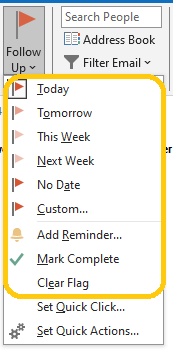
By adding this functionality to your C# email applications, you improve productivity and let users flag emails so they never miss important items. In this article, we explore how to read, set, and manage follow-up flags for Outlook MSG files using C#. The code examples help you harness the full potential of follow-up flags for task management.
Using .NET API to Add Follow-Up Flags for Outlook Messages
Managing Outlook follow-up flags is a core feature of the Aspose.Email for .NET. With this versatile C# library, developers can programmatically create, update, and remove flags, enhancing productivity and ensuring critical emails are never overlooked. The library supports flag statuses such as “Complete,” “In Progress,” or “Flagged for Follow Up,” allowing detailed and organized email management. You can also set reminders to alert users at specific times. This functionality integrates seamlessly with other email features offered by the library, streamlining email processing workflows.
To use the API, download its DLL or install it from NuGet with the following command:
PM> Install-Package Aspose.Email
Reading Follow-Up Flag Settings in Outlook Emails
Understanding the current follow-up flag settings on an email is the first step to managing tasks. Using Aspose.Email for .NET, developers can easily read follow-up flag options for an Outlook message. The snippet below shows how to access and display follow-up flag details for a given email. By loading an MSG file and examining its properties, the code extracts and prints the status, flag request, start and due dates, and any reminder times. This ensures no important email tasks are missed and supports organized email management.
- Load an MSG file into the MapiMessage object using the MapiMessage.Load method.
- Use the FollowUpManager.GetOptions to access various follow-up flag attributes.
- Retrieve and print follow-up details: start date, due date, reminder time, voting buttons, categories, and completion status.
Setting a Follow-Up Flag
Setting a follow-up flag programmatically helps you create tasks and reminders efficiently. The code snippet below shows how to set a flag with a start date, due date, and reminder, keeping your tasks well‑organized.
- Load an MSG file into the MapiMessage object using the MapiMessage.Load method.
- Initialize follow-up flag details.
- Create options for it.
- Apply the created options to the loaded message using the FollowUpManager.SetOptions.
Setting Flags for Recipients
Sometimes you may want to set follow-up flags for the recipients of your emails. This is useful for delegating tasks or ensuring a recipient follows up on a request. In the sample below, we mark the message as a draft and set a follow-up flag with a reminder date for the recipients, prompting them to take action.
- Load the email message from the specified file with the MapiMessage.Load method.
- Mark the email message as unsent by setting the corresponding message flag.
- Set the reminder date and time.
- Apply a follow-up flag with a reminder for the recipients using the FollowUpManager.SetFlagForRecipients.
Marking as Complete
Once a task is completed, update the follow-up flag accordingly. This helps you keep an accurate task list.
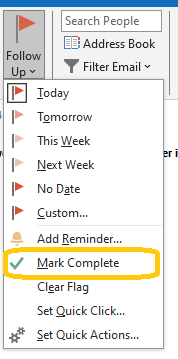
The code sample below marks the follow-up flag on the message as completed, updating its status.
- Use the MapiMessage.Load method to load the message from a file specified by fileName.
- Use the FollowUpManager.MarkAsCompleted method to mark the loaded message msg as completed.
Removing Flags
If a follow-up flag is no longer needed, remove it to clean up your task list and reduce clutter. Clearing the flag ensures the message is no longer marked for follow‑up, helping you maintain an organized inbox.
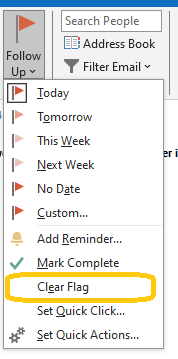
The code sample below shows how to implement this feature:
- Use the MapiMessage.Load method to load the message from a file specified by fileName.
- Use the FollowUpManager.ClearFlag method to clear the follow-up flag on the loaded message msg.
Conclusion
In conclusion, implementing follow-up flags in Outlook using C# significantly enhances email management by enabling efficient task and reminder systems directly within an inbox. By leveraging the Aspose.Email for .NET library, developers can seamlessly integrate features to read, set, and manage follow-up flags, ensuring that no critical emails are overlooked. This article demonstrated how to use the library’s capabilities for various follow-up scenarios, including setting reminders, marking tasks as complete, and removing unnecessary flags.
The provided code examples offer a practical guide for incorporating these features into your applications, facilitating better organization and productivity. Whether you need to track your tasks or delegate follow‑ups to recipients, programmatically managing follow-up flags adds substantial value to your email handling processes.
Additionally, you can use our free public resources:
- API reference offers in‑depth information on classes and methods.
- Documentation provides comprehensive guides with examples.
- Support forum allows users to seek help and discuss issues.
- Blog features updates, tutorials, and best practices.