In this article you will learn how to add Excel automation to Android apps. You’ll be able to create Excel XLSX or XLS files from scratch in Android programmatically. The guide also covers updating existing files, generating charts, applying formulas, and adding pivot tables.
- Android API to Create Excel File
- Create Excel XLSX or XLS Files
- Edit Existing Excel Files
- Create Charts in Excel Files
- Create a Pivot Table in an XLSX
- Add Formulas for Cells in XLSX
Android API to Create Excel File - Free Download
Aspose.Cells for Android via Java is a robust spreadsheet library that enables you to generate, read, and modify Excel workbooks on Android devices without requiring Microsoft Office. The API supports rich features such as chart creation, formula evaluation, and pivot‑table manipulation. You can obtain the library by downloading it directly or adding it to your Gradle build:
maven {
    url "https://repository.aspose.com/repo/" }
compile (
        group: 'com.aspose',
        name: 'aspose-cells',
        version: '21.3',
        classifier: 'android.via.java')
Create Excel XLSX or XLS in Android
An Excel workbook consists of one or more worksheets, each containing rows and columns of cells. Follow these steps to programmatically create a new XLSX workbook from the ground up:
- Instantiate the Workbook class.
- Retrieve the target worksheet via the
Workbook.getWorksheets().get(index)method. - Write values to cells using standard A1 notation (e.g.,
A1,B3). - Persist the workbook to storage with the Workbook.save() method, specifying the desired file format (
.xlsxor.xls).
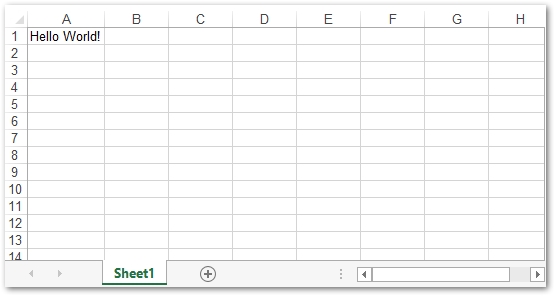
The code snippet below demonstrates a complete end‑to‑end example of creating an Excel XLSX file on Android.
Edit an Excel XLSX File in Android
Modifying an existing workbook follows a similar pattern: load the file, update cells, and save the changes. This approach is ideal for scenarios such as data import, report generation, or user‑driven edits.
- Open the workbook with the Workbook constructor, passing the file path or input stream.
- Navigate to the required worksheet and cell using the Worksheet and Cell classes.
- Apply new values or formulas to the targeted cells.
- Save the updated workbook back to the device as an .xlsx file.
The following example shows how to update an existing Excel file on Android.
Create Charts or Graphs in Excel in Android
Charts turn raw data into visual insights, making analysis faster and more intuitive. Aspose.Cells for Android via Java provides a comprehensive chart engine that supports line, bar, pie, and many other chart types. Use the steps below to embed a chart into a worksheet:
- Create or load a workbook using the Workbook class.
- Populate the worksheet with the data series you want to visualize (optional but recommended).
- Access the chart collection via
Worksheet.getCharts(). - Add a new chart with
Worksheet.getCharts().add(ChartType, row, column, height, width). - Configure the chart’s NSeries to reference the data range.
- Save the workbook, which now contains the embedded chart.
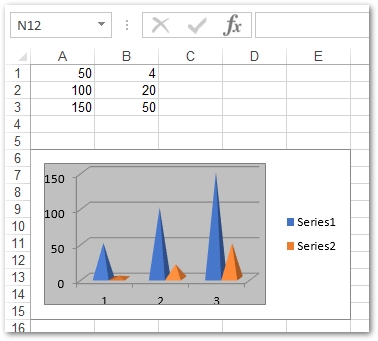
The sample code illustrates how to insert a chart into an Excel XLSX file on Android.
Create a Pivot Table in Excel XLSX in Android
Pivot tables provide powerful data summarization and filtering capabilities. With Aspose.Cells you can generate a pivot table programmatically by defining the source data range and the destination cell.
- Instantiate a new Workbook or open an existing file.
- Fill the worksheet with source data (optional if you are creating a new file).
- Retrieve the pivot‑table collection using
Worksheet.getPivotTables(). - Add a pivot table with
Worksheet.getPivotTables().add("PivotTableName", sourceRange, destinationCell). - Configure fields, rows, columns, and data items as needed.
- Save the workbook, which now includes the pivot table.
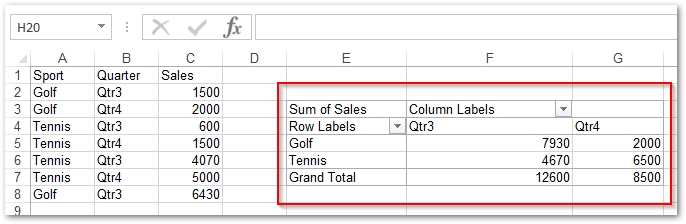
The code example below demonstrates creating a pivot table in an Android environment.
Add Formulas for Cells in Excel File
Aspose.Cells for Android via Java also enables full formula support, allowing you to embed both built‑in and custom add‑in functions directly into cells.
Apply Built-in Functions in Excel
Select the target cell and assign a formula string using the Cell.setFormula(String) method. The snippet below shows how to apply a standard SUM formula.
Add Add‑in Functions in Excel
For custom calculations, register an add‑in (.xlam) file and then call the function from a cell. Use either registerAddInFunction(int, String) or registerAddInFunction(String, String, boolean) to make the function available. The following example registers an add‑in and applies it to a cell.
Conclusion
You have learned how to create and manipulate Excel files on Android without Microsoft Office, including workbook creation, data updates, chart generation, pivot‑table construction, and formula application. Dive deeper into the full capabilities of Aspose.Cells by exploring the documentation or joining the conversation on our forum.