
Creating compact, machine‑readable symbols for package tracking and inventory is a frequent requirement in logistics software. Aspose.BarCode for Python via .NET provides a robust SDK that enables you to generate MaxiCode Barcode in Python with just a few lines of code. In this tutorial you will see the installation steps, a complete code example, and tips for configuring and optimizing the barcode for high‑quality output.
Steps to Generate MaxiCode Barcode in Python
Install the SDK: Run
pip install aspose-barcode-for-python-via-netto add the library to your project.- This pulls the latest binaries from the download page.
Create a BarcodeGenerator instance:
from asposebarcode import BarcodeGenerator, EncodeTypes, MaxiCodeEncodeMode generator = BarcodeGenerator(EncodeTypes.MAXI_CODE, "0123456789")- The constructor sets the encode type to MaxiCode. See the API reference for all overloads.
Configure MaxiCode specific options:
generator.parameters.barcode.maxi_code.encode_mode = generation.MaxiCodeEncodeMode.AUTO generator.parameters.resolution = 300 # DPImaxi_code.encode_modeselects the appropriate MaxiCode variant, whileresolutioncontrols image clarity.
Generate and save the image:
generator.save("maxicode.png", asposebarcode.BarcodeImageFormat.PNG)- The
savemethod writes the barcode to a PNG file that can be used in web pages or printed labels.
- The
Validate the result: Open the generated
maxicode.pngto ensure the data is encoded correctly. Adjust size or mode if the scanner reports errors.
MaxiCode Barcode Generation - Complete Code Example
The following program demonstrates a full end‑to‑end implementation, from installation to image creation.
# Complete working code to generate a MaxiCode barcode in Python
import aspose.barcode as barcode
from aspose.barcode import generation

def generate_maxicode(data: str, output_path: str):
    # Initialize the generator with MaxiCode type and the data string
    generator = generation.BarcodeGenerator(generation.EncodeTypes.MAXI_CODE, data)

    # Set MaxiCode mode (choose the appropriate mode for your use case)
    generator.parameters.barcode.maxi_code.encode_mode = generation.MaxiCodeEncodeMode.AUTO

    # Optional: adjust image resolution for sharper output
    generator.parameters.resolution = 300  # DPI

    # Save the barcode as PNG
    generator.save(output_path, generation.BarCodeImageFormat.PNG)

if __name__ == "__main__":
    sample_data = "0123456789"
    output_file = "output/maxicode.png"
    generate_maxicode(sample_data, output_file)
    print(f"MaxiCode barcode saved to {output_file}")
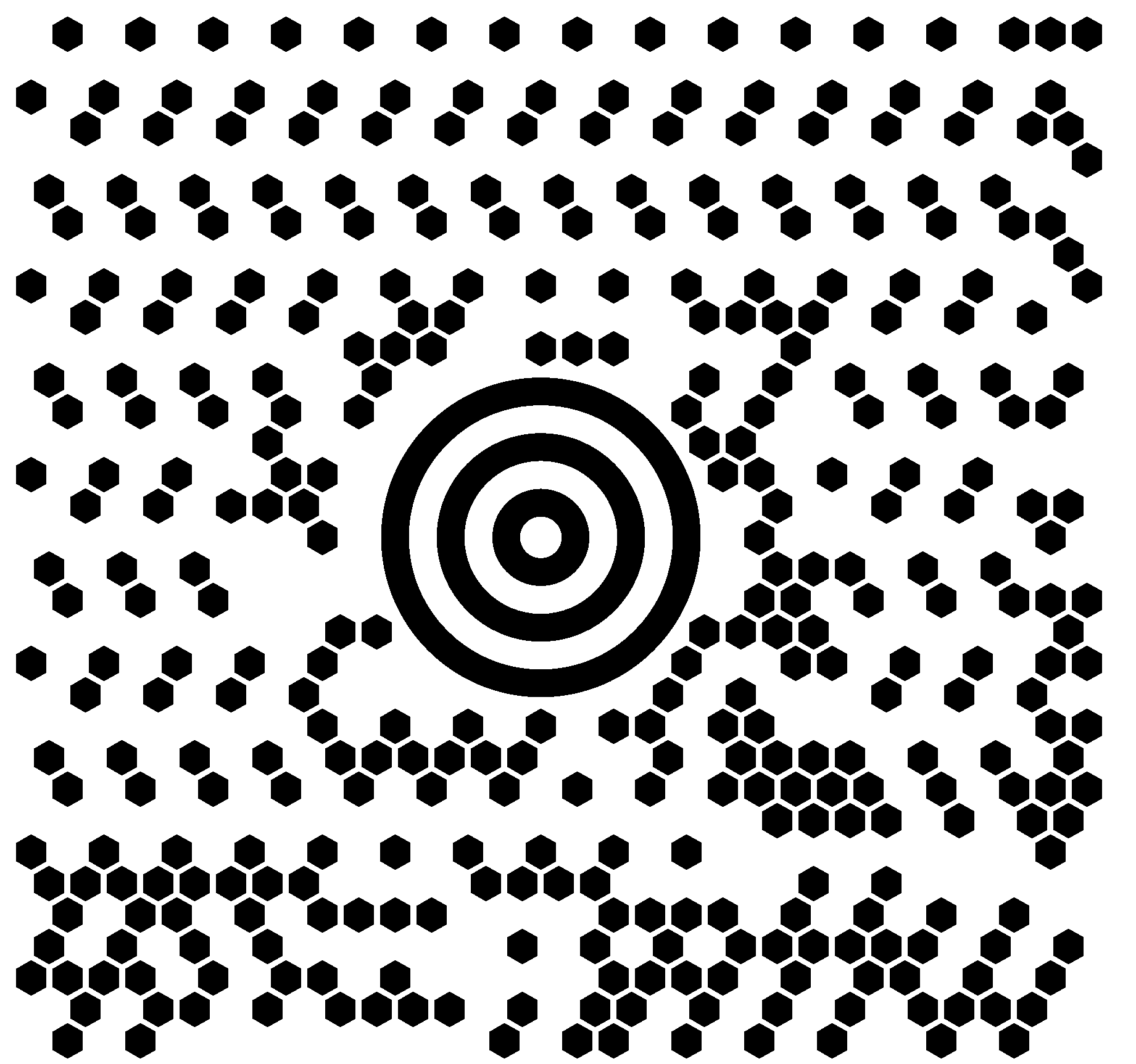
Note: This code example demonstrates the core functionality. Before using it in your project, make sure to update the file paths (
maxicode.png, etc.) to match your actual file locations, verify that all required dependencies are properly installed, and test thoroughly in your development environment. If you encounter any issues, please refer to the official documentation or reach out to the support team for assistance.
Installation and Setup in Python
pip install aspose-barcode-for-python-via-net
- The command pulls the SDK from the official repository.
- After installation, obtain a temporary license from the temporary license page and apply it in your code with
barcode.License().set_license("path/to/license.xml"). - For full commercial use, consult the pricing page to choose an appropriate plan.
Generate MaxiCode Barcode in Python with Aspose.BarCode
Aspose.BarCode supports a wide range of 1D and 2D symbologies, including MaxiCode, which is optimized for fast scanning in logistic environments. The library handles all low‑level encoding details, allowing you to focus on business logic rather than barcode standards.
Aspose.BarCode Features That Matter For This Task
- EncodeMode = MaxiCode - Directly selects the MaxiCode symbology.
- MaxiCodeEncodeMode - Choose between Mode 2, Mode 3, etc., depending on data size.
- ImageResolution - Control DPI to meet printer or screen requirements.
- Multiple Output Formats - PNG, JPEG, BMP, and more for seamless integration into web apps.
These features simplify the workflow for generating MaxiCode barcodes in any Python‑based application.
Configuring Barcode Options for MaxiCode
The generator.parameters object exposes all tunable properties:
| Property | Description | Typical Value |
|---|---|---|
maxicode_encode_mode | Selects the MaxiCode variant | MaxiCodeEncodeMode.AUTO |
resolution | Image DPI for clarity | 300 |
bar_color | Barcode color | Color.Black |
back_color | Canvas color | Color.White |
Adjust these settings before calling save to match the requirements of your scanning hardware.
Optimizing Performance and Image Quality
- Higher DPI improves readability on printed labels but increases file size. Use 300 DPI for most printers; 600 DPI for high‑resolution needs.
- Choose PNG for lossless quality when the barcode will be displayed on screens or printed. JPEG can reduce size for web delivery but may introduce compression artifacts.
- Cache generated images if the same data is encoded repeatedly, reducing CPU overhead.
Best Practices for MaxiCode Barcode Generation
- Validate input data - Ensure the string contains only characters supported by the selected MaxiCode mode.
- Use a temporary license during development to avoid runtime exceptions.
- Store generated PNG/JPEG files in a dedicated folder with proper access permissions.
- Test with real scanners to confirm that the chosen resolution and mode meet your operational requirements.
- When building a web app, generate the barcode on the server side and serve the image via an HTTP endpoint; this avoids exposing the SDK to the client.
Conclusion
Generating MaxiCode Barcode in Python is straightforward with Aspose.BarCode for Python via .NET. The SDK handles encoding, image rendering, and format conversion, letting you focus on integrating barcodes into logistics, inventory, or web‑based tracking solutions. Remember to apply a valid license either a temporary one for testing or a purchased license for production by following the instructions on the temporary license page and reviewing the pricing page. With the steps, code, and best‑practice tips in this guide, you can confidently add MaxiCode support to any Python application.
FAQs
How do I generate MaxiCode Barcode in Python using Aspose.BarCode?
Create a BarcodeGenerator with EncodeTypes.MAXI_CODE, set the desired maxicode_encode_mode, and call save. The full workflow is illustrated in the complete code example above.
Can I customize the size and resolution of the generated MaxiCode image?
Yes. Use the resolution, bar_width, and bar_height properties on the generator’s parameters object to control DPI and pixel dimensions.
What licensing is required for production deployments?
A temporary license is available from the temporary license page. For commercial use, purchase a full license via the pricing page.
Is it possible to generate MaxiCode barcodes in a web app built with Python?
Absolutely. Generate the barcode on the server using the SDK, then serve the PNG/JPEG file to the client. This approach works for Flask, Django, or any Python‑based web framework.